
Overview
Agentic Evaluation is a comprehensive framework for systematically analyzing AI agent performance in real-world production scenarios. It enables structured evaluation of complete AI agent trajectories across entire sessions and individual decision points within traces, providing both high-level and granular insights into how AI agents reason, act, and interact over time.Key Features
- Model Trace Analysis: Import and evaluate app sessions and traces from deployed apps (production data) or simulated sessions.
- Simulation Support: Generate simulated sessions using Personas and Test Scenarios to validate agent behavior before go-live and test edge cases safely.
- Multi-level Evaluation: Assess AI behavior across different layers—sessions (for example, goal achievement or tone), traces (for example, agent selection or tool usage), and specific interactions.
- Evaluator Library: Apply predefined evaluators to assess the quality and effectiveness of Agentic app behavior.
- Interactive Analysis Tools: Use scorecards and trace visualizations to explore evaluation results, drill into sessions or traces, and inspect full execution paths—including supervisors, agents, and tools—to pinpoint errors, inefficiencies, or optimization opportunities.
- Actionable Insights: Identify failures, deviations, or redundant interactions to continuously improve your app’s responsiveness, reliability, and user satisfaction.
Key Benefits
- Continuous Improvement: Understand how your AI agents behave in production and refine them based on real usage patterns.
- Scalable Quality Assurance: Evaluate thousands of sessions in bulk using automated evaluators.
- Informed Decision Making: Use evaluation data to prioritize fixes, redesign workflows, or refine prompts and tools.
- Stronger Agentic Design: Gain visibility into how supervisors, agents, and tools interact, allowing you to design more robust, reliable, and context-aware agentic applications.
User Journey
The key actions at each stage of the Agentic Evaluation workflow:│ ┌───────────────────────┐
│ │ 1. Create Project │
│ └───────────┬───────────┘
│ ▼
│ ┌───────────────────────┐
│ │ 2. Choose Data Source │
│ └───────────┬───────────┘
│ ┌────────────────┴───────────────┐
│ ▼ ▼
│ ┌──────────────────────┐ ┌──────────────────────┐
│ │ SIMULATED DATA │ │ PRODUCTION DATA │
│ ├──────────────────────┤ ├──────────────────────┤
│ │ Create Personas │ │ Import Sessions │
│ │ │ │ │ from deployed │
│ │ ▼ │ │ Agentic apps │
│ │ Define Test Scenarios│ └───────────┬──────────┘
│ │ │ │ │
│ │ ▼ │ │
│ │ Run Simulations │ │
│ └─────────┬────────────┘ │
│ └──────────────┬───────────────────┘
│ ▼
│ ┌──────────────────────────┐
│ │ 3. Create an Evaluation │
│ └──────────┬───────────────┘
│ ▼
│ ┌──────────────────────────┐
│ │ 4. Import Data │
│ └──────────┬───────────────┘
│ ▼
│ ┌──────────────────────────┐
│ │ 5. Configure Evaluators │
│ └──────────┬───────────────┘
│ ▼
│ ┌──────────────────────────┐
│ │ 6. Run the Evaluation │
│ └──────────┬───────────────┘
│ ▼
│ ┌──────────────────────────┐
│ │ 7. View & Analyze Results│
│ └──────────────────────────┘
Create a Project
Before running any evaluations, you need to create a project in Evaluation Studio. A project serves as a workspace dedicated to a single Agentic app, where all related evaluations and session data are organized.: Projects are scoped to a single Agentic app. All evaluations related to that app will remain part of this project. You can continue to import more sessions to the same project as needed. However, projects are limited to sessions from the same app version and environment.
- Log in to the Platform and go to Evaluation Studio.
-
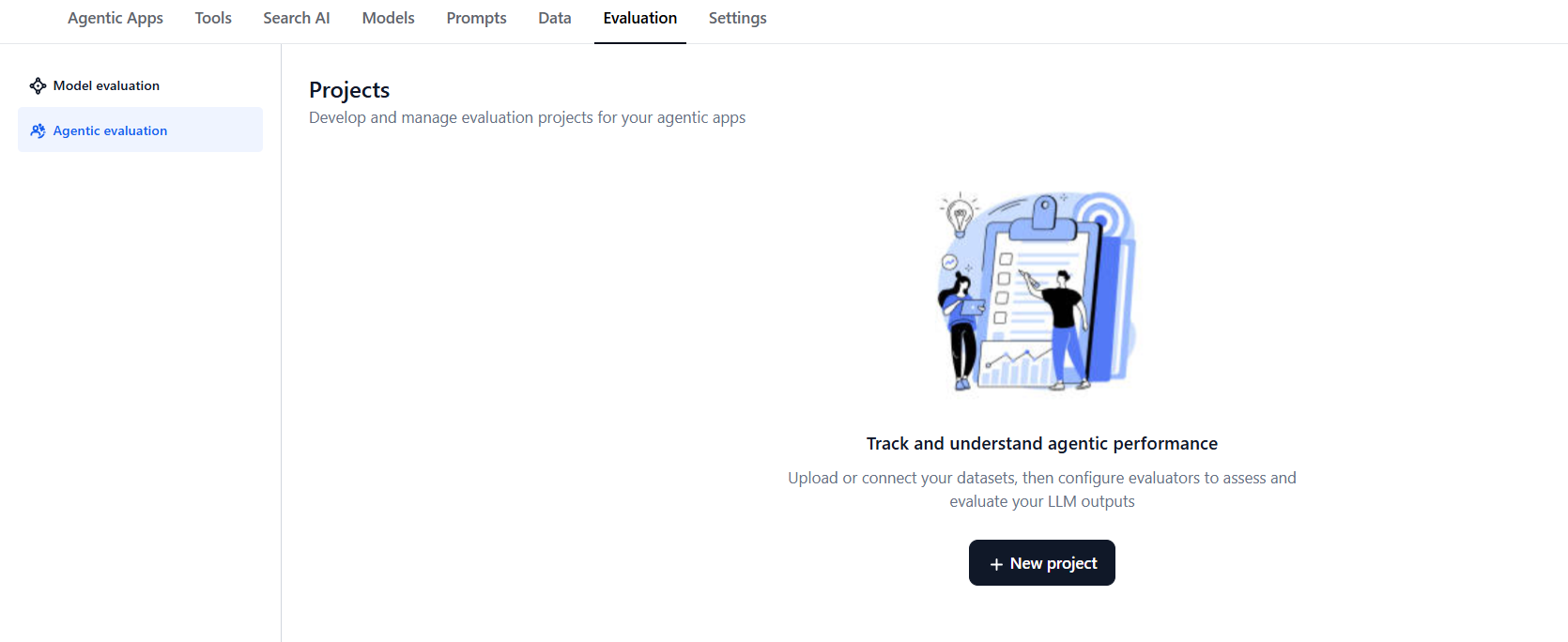
In the left pane, select Agentic Evaluation.
-
Select New Project.
- Enter a name for your project.
- Select the Agentic app for which you are creating the project.
- Select the environment for the app (for example, Draft, Testing, or Production). The selected environment determines which version of the agent is used when running simulations.
-
On the Quick Overview page, choose your data path:
- Simulated data: Create Personas → Define Test Scenarios → Run Simulations to import simulated sessions into an evaluation.
- Production data: Select Evaluations to directly import sessions from deployed Agentic apps.
Simulations
Simulations enable automated creation of test sessions so you can evaluate your agent before your Agentic app goes live. Using simulations, you can test different scenarios with various personas and see how your agent performs across contexts and input types—without relying on real user data. Simulated evaluations help you:- Validate agent responses before go-live.
- Benchmark results against desired outputs.
- Iterate on logic, tone, or context handling.
- Improve overall agent reliability and trustworthiness.
How It Works
Simulations create realistic testing conditions by linking three key components: Personas, Test Scenarios, and Simulation Runs.- Create Personas — Define user profiles representing different end-user types with configurable traits such as demographics, tone, emotion, urgency, and intent patterns.
- Define Test Scenarios — Create or reuse test cases that represent typical or edge user queries, capturing the context and expected agent behavior for each situation.
- Run Simulations — Combine selected personas and test scenarios to generate simulated sessions. The system automatically generates queries and feeds them to the agent to simulate realistic mock conversations.
- Use Simulated Data for Evaluation — Import simulated sessions into Evaluation Studio and run evaluators to assess performance, tone, adherence, and tool accuracy.
Create Personas
Personas represent different types of users who interact with your agent. Each persona simulates distinct communication styles, goals, and behavior patterns. During simulation runs, they help test how your agent performs with varied user contexts and tones. Steps to create a persona:- Go to Evaluation Studio → Agentic Evaluation → Personas.
- Click Create Persona.
- Enter a Persona name and Description.
- (Optional) Add additional persona attributes such as role, gender, language, emotion, and patience or urgency levels.
- Click Save.
 You can create multiple personas to represent different user types. Each persona can be used in one or more simulations. After creating personas, you can edit, duplicate, or delete them anytime from the Personas page. When a persona is deleted, any active simulations using it automatically switch to the default Unidentified Persona.
Personas are reusable across multiple simulations within the same Agentic Evaluation project.
Create Test Scenarios
Test scenarios define the context, user intent, and expected outcome for a simulated interaction. Each scenario captures the situation, input details, and desired response to help evaluate how the agent performs under different conditions. You can create test scenarios in two ways:- Write test scenarios — Manually define details such as the user query, context, and expected output.
- Generate test scenarios — Automatically generate multiple scenarios using AI, based on your agent’s configured capabilities.

Write Test Scenarios
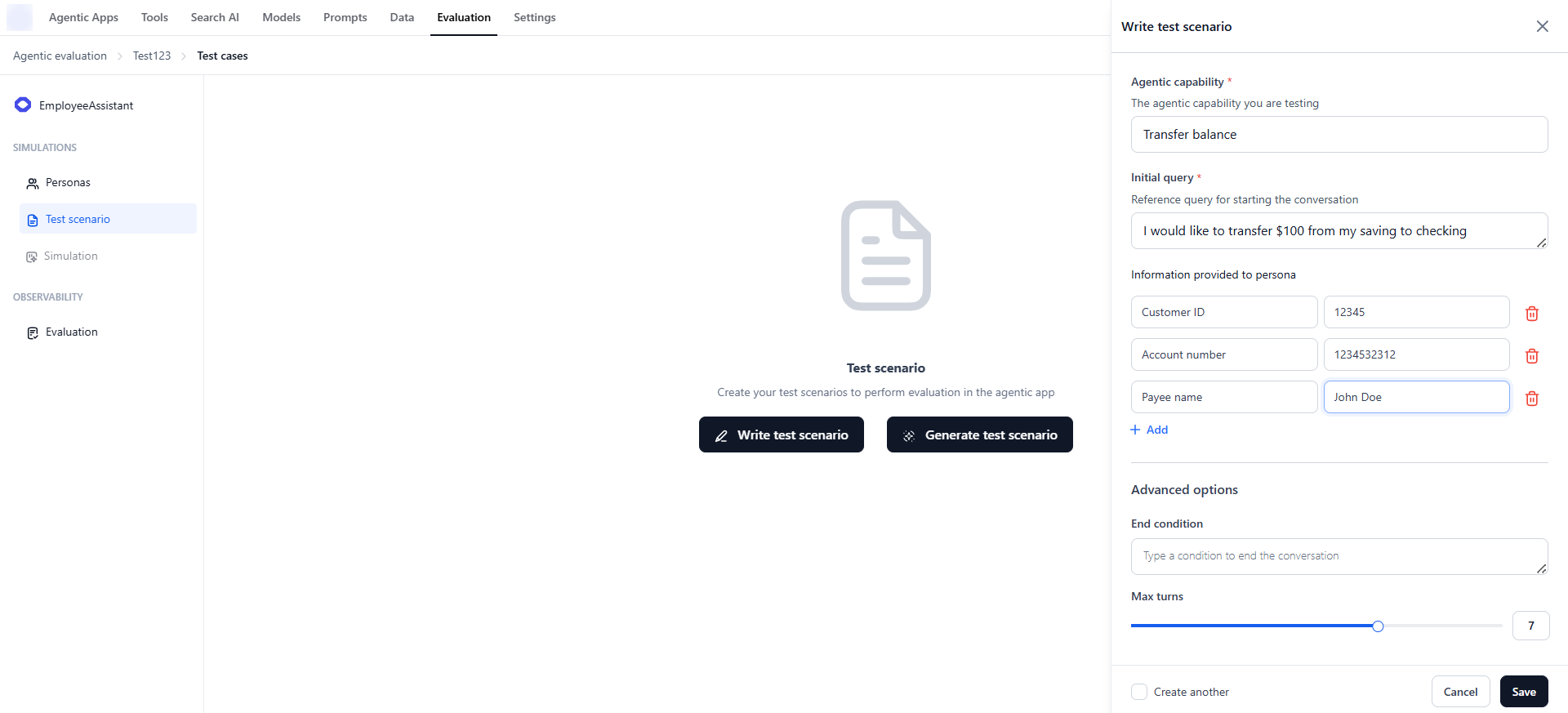
To manually create a test scenario:- Go to Evaluation Studio → Agentic Evaluation → Test Scenarios.
- Click Write test scenario.
- Enter the following details:
- Agentic capability — The specific skill or function being tested.
- Initial user query — The user’s opening message or intent.
- Information provided to persona — Any context or background knowledge for the persona.
- End condition — A plain-text condition that signals when the simulation should stop. The simulation also stops automatically if the agent ends the conversation early; if the end condition is not reached, it stops at Max turns.
- Max turns — The maximum number of turns before the simulated conversation ends.
- Click Save.
Provide any specific details required for the task—such as account numbers, external links, ticket IDs, or user IDs—so the simulation agent can supply the necessary context for a complete multi-turn conversation.
Generate Test Scenarios
To automatically generate test scenarios:- On the Test Scenarios page, click Generate test scenarios.
- Specify the following details:
- Model and model parameters to use for generation.
- Agentic capabilities to cover (for example, Transfer balance).
- Number of test scenarios per capability (maximum: 15).
- Information provided to the persona, such as background or knowledge context.
- Click Generate.
Provide any required details—such as account numbers, external links, ticket IDs, or user IDs—when generating scenarios. These details are appended to all generated scenarios and used only when needed by the simulation agent to complete the multi-turn conversation.
 The system automatically generates multiple varied test queries for each capability, including both normal and negative cases. After creation, you can edit, duplicate, or delete scenarios anytime from the Test Scenarios page.
Manual and AI-generated scenarios can coexist and are reusable across multiple simulations within the Agentic Project.
| Field | Value |
|---|---|
| Scenario name | Refund flow for impatient customer |
| Agentic capability | Handle refund requests |
| Information provided to Persona | Order ID: 123876452 |
| User query | ”I canceled my order yesterday — why isn’t my refund showing up?” |
| End condition | Agent confirms refund initiation |
Run Simulations
After creating personas and test scenarios, run a simulation to generate realistic interaction sessions. Simulations produce mock conversations that help you evaluate agent responses, measure consistency, track goal completion, and identify areas for improvement.The Simulation module becomes active only when at least one persona and one test scenario exist in your workspace.
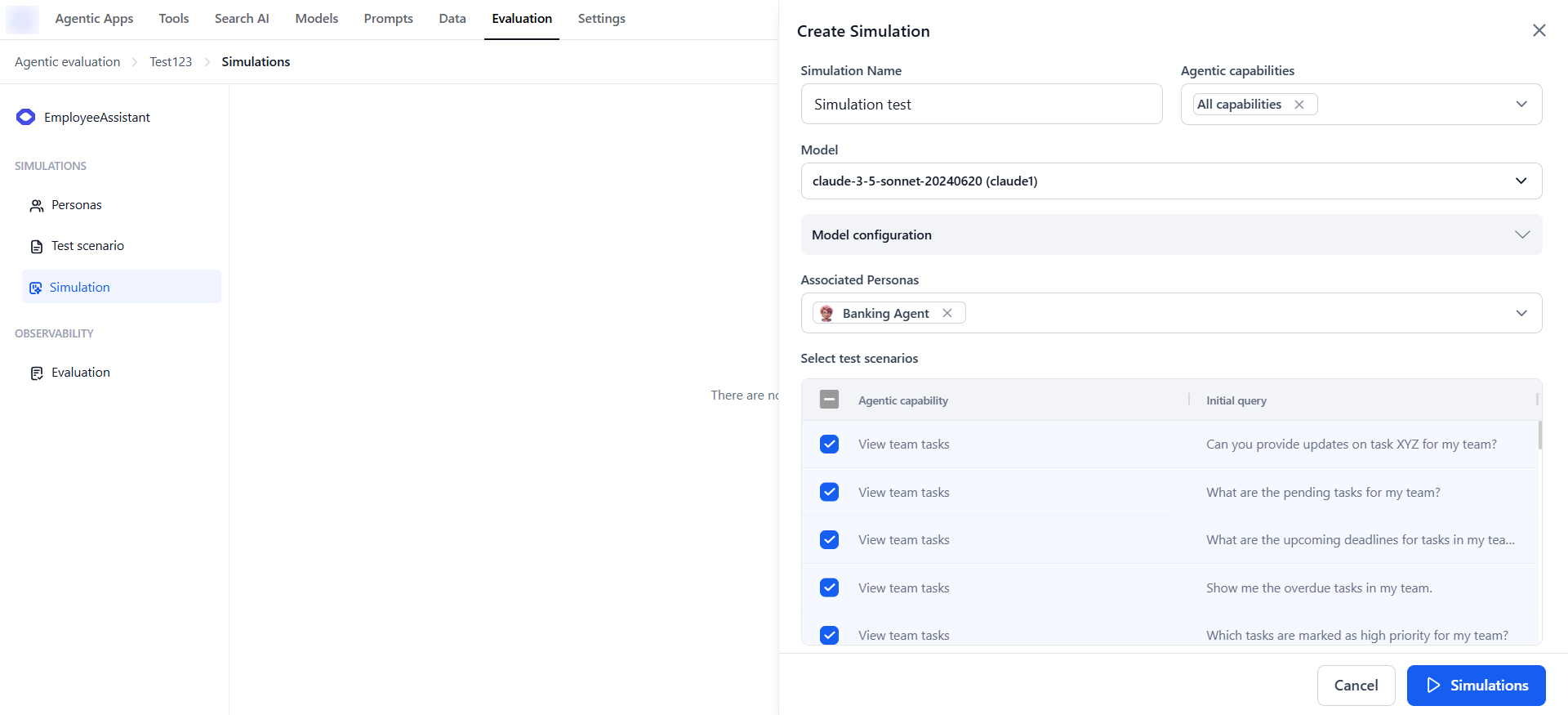
- Go to Evaluation Studio → Agentic Evaluation → Simulations.
- Click Create Simulation.
- Specify the following:
- Name for your simulation.
- Model and model parameters to use.
- Agentic capabilities to filter available test scenarios.
- One or more personas and test scenarios.
- Click Run.
- The system combines each Persona × Test Scenario to generate multiple test queries.
- Each query includes the first user input and context/knowledge for follow-up interactions.
- Queries are passed to the agent to create mock conversations (each conversation representing one simulation session).
- Outputs are recorded, including agent responses, scenario and persona information, and metadata.
 After the simulation run completes:
- View conversation transcripts between personas and the agent.
- Analyze how well the agent handled each scenario.
- Identify areas for improvement before production deployment.


Create an Evaluation
Once your project is set up, the next step is to create an evaluation where session data can be analyzed. Evaluations act as containers for imported sessions and are the starting point for applying evaluators. Steps to create an evaluation:-
On the Session Evaluation page, click Create Evaluation.

- Enter a name for your evaluation.
-
Select the data source and click Create:
- Production Data — Sessions generated by real users in your deployed Agentic apps.
- Simulated Data — Sessions generated from one or more simulation runs.


Import Data
To evaluate how your AI agents perform, import data into Evaluation Studio. You can choose between:- Production data — Sessions generated by real users in your deployed Agentic apps, ensuring evaluation is based on actual user interactions. Sourced from Agentic app sessions and traces.
- Simulated data — Sessions generated from simulation runs, allowing you to test agent performance in controlled, repeatable scenarios.
Import Production Data
Prerequisites: Make sure you have already interacted with the app and generated conversation sessions in your production environment. Steps to import production data:-
Open your evaluation from Evaluation Studio → Agentic Evaluation → Evaluations.
-
Select the evaluation and click Import sessions.

-
In the Import Session dialog, enter the following and click Import:
- Version — Select the version of the Agentic app to evaluate.
- Environment — Choose the environment that contains the session data.
- Date — Select the time range to filter sessions by a specific release or timeframe.

Import Simulated Data
Prerequisites: At least one simulation run with the relevant personas and test scenarios must exist. Steps to import simulated data:-
Open your evaluation from Evaluation Studio → Agentic Evaluation → Evaluations.
-
Select the evaluation and click Import simulated data.

-
Choose the Simulation from which to import sessions and click Import.

Understanding the Imported Data
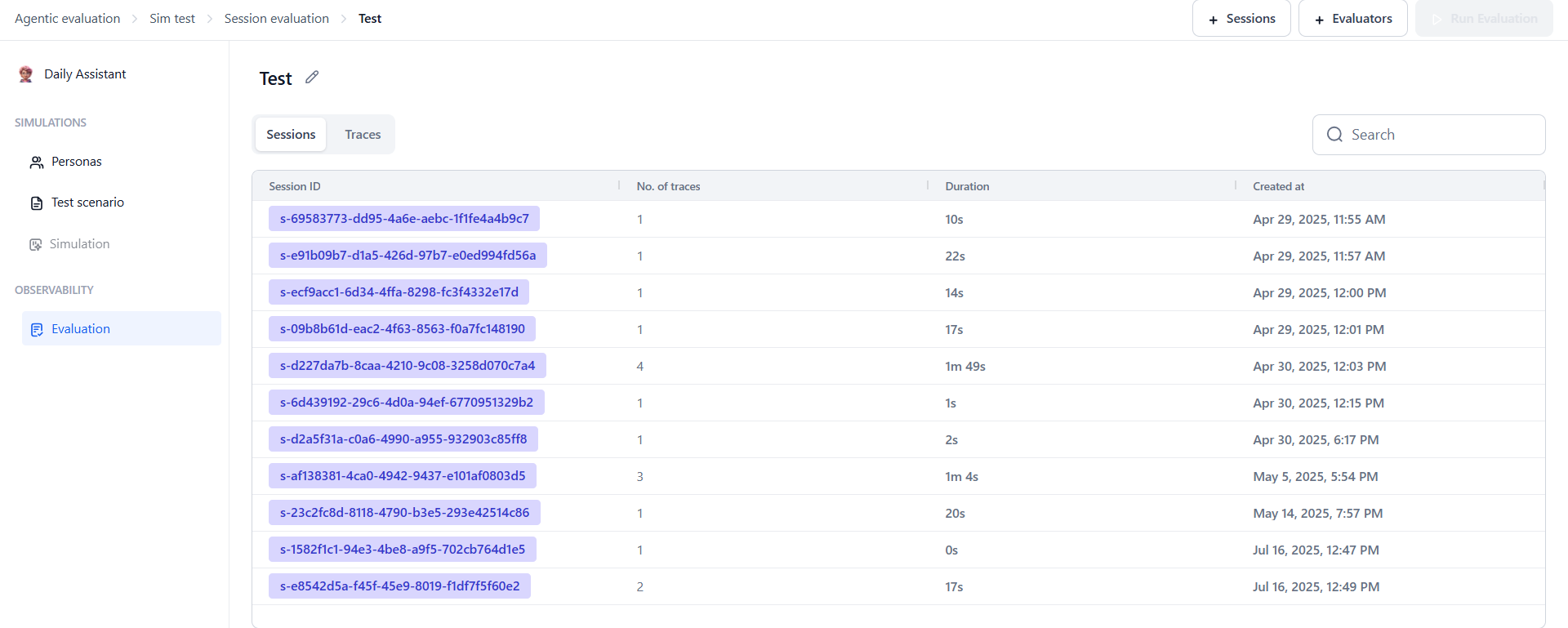
Imported data is organized into two tabs:- Sessions — Displays the list of sessions with details like session ID, number of traces, creation time, and duration. Add session-level evaluators here to measure overall outcomes.
- Traces — Breaks sessions into individual traces, each representing one pair of user input and Agentic app response. Add trace-level evaluators to check specific actions, like whether the correct agent or tool was used.
Configure Evaluators
After importing sessions, apply pre-built evaluators to measure your AI agent’s behavior and performance. Evaluations can be run at both the session and trace levels. Steps to add evaluators:-
On the Imported Sessions page, click + Evaluators.

-
Select the desired session or trace-level evaluators.

-
Configure the evaluator settings (such as selecting the model and adjusting model configurations) and click Save.

- Click Run Evaluation to start the evaluation process.
Types of Evaluators
Agentic Evaluation uses two evaluator types to provide insights at both the overall conversation level and individual decision points.Session Evaluators
Session evaluators assess the overall quality of a full session—a complete conversation between the user and the Agentic app, consisting of multiple traces.| Evaluator | Description |
|---|---|
| Final Goal Check | Determines whether the agent successfully achieved the intended outcome by the end of the session. |
| Message Tonality | Evaluates whether the conversation maintained an appropriate and consistent tone (such as professional, friendly). |
| Topic Adherence | Assesses if the agent stayed within the defined knowledge boundaries and relevant topics, avoiding unrelated areas. |
Trace Evaluators
Trace evaluators operate at a more granular level, analyzing decisions made within individual traces. A trace represents a single interaction cycle: one user query and the Agentic app’s response.| Evaluator | Description |
|---|---|
| Agent Call Accuracy | Evaluates whether the supervisor/orchestrator calls the correct agents based on the user’s query. |
| Tool Call Accuracy | Checks if the agent invokes the correct tools with the right parameters based on context and intent. |
Since traces are parts of sessions, you can add trace-level evaluators from the Sessions tab. However, session-level evaluators cannot be added from the Traces tab.
Run the Evaluation
Once sessions are imported and evaluators are configured, click Run Evaluation to apply the selected evaluators to the selected sessions or traces. The system runs all applicable evaluators, processes the data, and computes scores for each relevant session or trace segment. Results are displayed in the session grid, with each evaluator contributing one or more dedicated columns.
Evaluations can be run multiple times—for example, after updating agent logic, adding new simulated sessions, or importing additional production data. This allows you to benchmark performance across different agent versions and testing conditions.
View Evaluation Results
After the evaluation run completes, the session grid is updated with evaluator-specific columns displaying average scores for each session or trace. Clicking on a score allows you to drill down into detailed results.-
In the Sessions tab, both session-level and trace-level evaluation results are visible.

-
In the Traces tab, only trace-level results are shown.

Analyze Evaluation Results
After running evaluations, explore results through an interactive interface designed to reveal how your Agentic app performed at both session and trace levels. What you’ll see:- Summary scores at a glance — Scan evaluator columns to compare scores across sessions.
- Drill-down views — Click into any session or trace to view a step-by-step evaluation breakdown, scores at the Supervisor, Agent, and Tool levels, inputs/outputs that were evaluated, and explanations behind each score.
Understanding the Session Table
Each imported session appears as a row in the table with:- Session metadata — Session ID, start time, duration, and number of traces.
- Evaluator-specific columns — Each evaluator adds a column showing a summary score (numeric, categorical, or custom depending on the evaluator type).
 Steps to analyze your evaluation:
- On the Sessions tab:
- Click any session-level evaluator score (for example, Topic Adherence, Message Tonality, or Final Goal Check) to open a detailed view showing how the score was calculated.
- Alternatively, click any session ID to open a filtered view in the Traces tab showing all traces for that session.
- On the Traces tab, click any trace-level evaluator score (for example, Tool Call Accuracy, Agent Call Accuracy) to open a detailed tree view showing reasoning steps and associated scores.
Session View Overview
Clicking a session score opens the Session Details View with two tabs:- Verdict — Displays the evaluation score (for example, pass/fail for Message Tonality) along with a written explanation.
- Transcript — Shows the full conversation for that session.

Trace View Overview
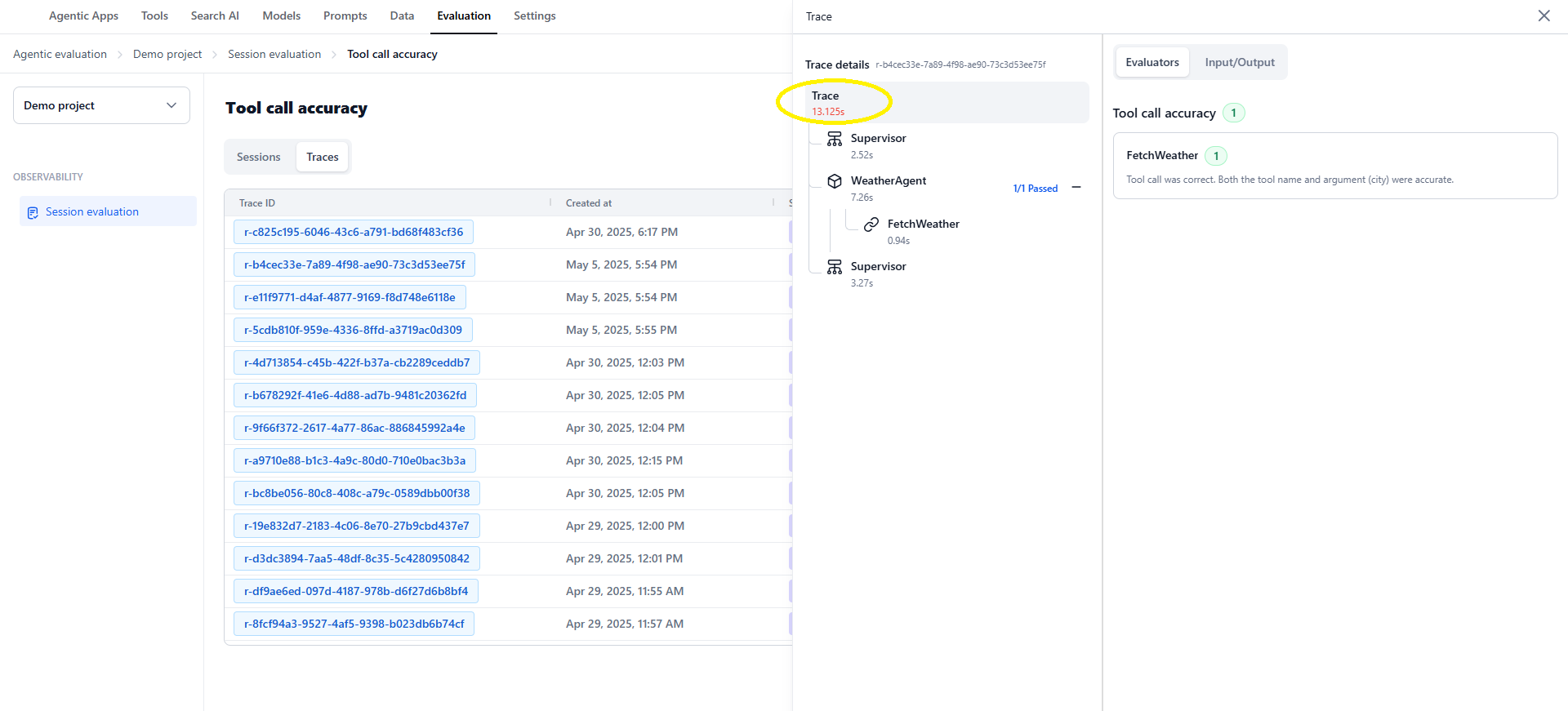
Clicking a trace opens the Trace Details View with two panels: Left Panel:- Displays the trace tree visualization.
- Shows the reasoning structure across three levels: Supervisor, Agent, and Tool.
- Each node is clickable; selecting a node updates the right panel with its corresponding evaluators.
- Evaluators tab — Displays all evaluators applied at the selected node level with their results.
- Input/Output tab — Shows relevant inputs and outputs for the selected node.
 The trace tree displays the hierarchical structure of the agentic system:
Root level (Trace root):
The trace tree displays the hierarchical structure of the agentic system:
Root level (Trace root):
- Represents the entire trace and aggregates all evaluators applied to it.
- Clicking the root node displays all attached evaluators (for example, Agent Call Accuracy and Tool Call Accuracy) in the right panel.
- Contains evaluations assessing whether the supervisor called the correct agents.
- Clicking a supervisor node shows only supervisor-specific evaluators (for example, Agent Call Accuracy).
 Agent level:
- Represents actions and decisions made by an agent.
- Displays only agent-specific evaluators (for example, Tool Call Accuracy).
- Clicking an agent node reveals tool usage and corresponding evaluation results.
 Tool level:
- Represents individual tool calls made by the agent.
- Clicking a tool node opens the Tool Call Results view displaying the evaluation score, evaluator explanations, and the tool’s input and output.

Understanding Evaluation Scores
Evaluation scores are assigned based on how well the Agentic app performed according to specific criteria.Session Evaluator Scoring
| Evaluator | Pass | Fail |
|---|---|---|
| Final Goal Check | The agent achieved the intended goal by the end of the session. | The agent did not fulfill the user’s objective. |
| Message Tonality | The tone is professional, friendly, or appropriate. | The tone is inconsistent or inappropriate. |
| Topic Adherence | The agent stays within defined knowledge boundaries. | The agent goes off-topic or outside its defined scope. |

Trace Evaluator Scoring
Agent Call Accuracy:- Score 1 (Good) — The correct agent is selected.
- Score 0 (Bad) — The wrong agent is selected.
- Score 1 (Good) — The right tool is called with the correct parameters. For example, the user asks for the weather in Chicago, and the agent calls the weather tool with Chicago as the location.
- Score 0.5 (Partial) — The right tool is used, but parameters are incorrect. For example, the agent calls the weather tool but passes “New York” instead of “Chicago.”
- Score 0 (Bad) — The agent calls the wrong tool and also provides incorrect or missing parameters.

Error Scenarios
During evaluation, you may encounter issues that affect scoring or analysis. These are surfaced clearly in the interface to help you diagnose and resolve problems. Model errors (401):| Error | Description |
|---|---|
| Token limit exceeded | The input to the model exceeded its maximum token limit. |
| Rate limit | Too many requests made in a short time, exceeding API limits. |
| Context length exceeded | The evaluation payload was too large for the model’s context window. |
| Malformed JSON in model output | The model returned a response that couldn’t be parsed (for example, missing brackets or invalid formatting). |
